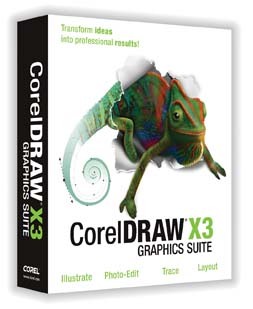
For many years, perhaps the most versatile graphics program on the market has been CorelDRAW and CorelDRAW Graphics Suite. Most everyone who's done any graphics work on a PC owns some version of CorelDRAW. Although it's always been known for some of the most robust, vector-drawing tools available, the suite has also included such things as an image-editing piece, a scan-and-trace program and various utilities. Additionally, the suite came with a large library of fonts, clip art, photos and many manuals.
In recent releases, Corel Corp. has pared back the utilities and now concentrates on providing a solid set of tools that addresses specific graphic needs. It has also acknowledged that graphic artists and designers have other tools in their arsenals, and compatibility has become a key suite feature.
With so many tools, how could Corel improve upon its previous release (version 12), which had introduced various ease-of-use improvements and tweaked many standard tools?
Well, the CorelDRAW Suite X3 features more than 40 enhancements. Sure, many enhancements tweak existing functionality, but most integrate and facilitate the sometimes tedious task of creating artwork.
Suite system requirements
CorelDRAW has been Windows® based since its introduction. This tradition remains alive with CorelDRAW X3. You must be running Windows 2000 or a flavor of XP. You'll need a minimum of 256MB of RAM and 200MB of free disk space. You'll need a good graphics card; the recommended screen resolution is 1,024 3 768.
Surprisingly, the software box doesn't weigh 20 lbs. Numerous functions have been incorporated into the flagship CorelDRAW program. You still get hundreds of fonts and thousands of high-quality clipart images and photos. Application wise, you get the two main programs, CorelDRAW and Corel Photo-Paint. In addition, you can optionally install Corel Capture and Pixmantec RAWShooter essentials (more on that later).
Advertisement
A utility for managing fonts and creating service-bureau profiles, and a utility for duplexing (printing on both sides) documents, are also included.
Veteran users will notice Corel-TRACE's absence from the program group; tracing has been integrated into CorelDRAW.
Finally, the Corel suite comes with nice documentation in both electronic and hardcopy form, along with a new book, Insights from the Experts, that covers real-world applications with step-by-step instructions. It's only 75 pages, but it's complete.
New stuff
Normally, we examine a new application by first describing the application's user interface. A new user-interface feature, the Hints Docker, displays how to use selected tools. This minimizes time poring through documentation.
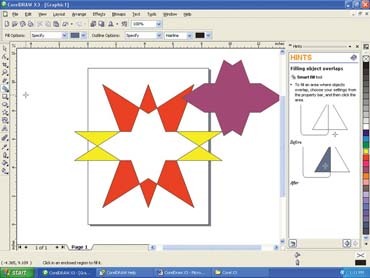
This version features several illustration enhancements. Stars commonly appear in sign work, and CorelDRAW X3 offers two new star tools. The star tool lets you create traditional stars, and the complex tool lets you create complex stars. Additionally, you can modify the number of points and their sharpness in real time (Fig. 1).
We've never seen anything like the new Smart Fill tool. Normally, when you overlap two objects (like stars) and then want to color the new interiors in different fills, the first fill floods the entire object. Smart Fill actually detects closed areas, fills the area and also creates a new object. This opens up new options for creating illustrations (Fig. 1).
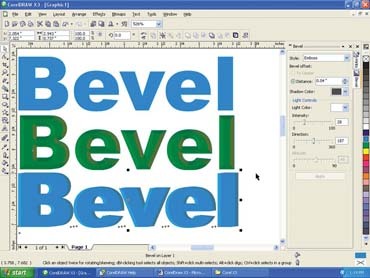
Most people with a digital printer have created text effects to add interest and impact to a design. Corel has enhanced its Bevel effect with an easy-to-use interface. Fig. 2 shows the same text being beveled with a soft edge and embossed. The tool works on any filled object or bitmap.
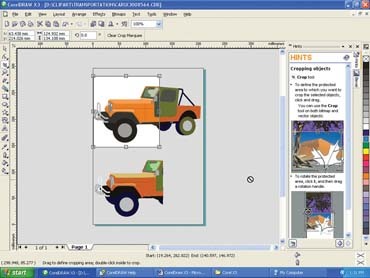
Another cool feature is the ability to crop a vector drawing like a bitmapped image. Select the tool; sweep the area you want to crop, and double click inside the area. This can save tons of time if you want to isolate part of a drawing (Fig. 3).
Advertisement
Rounding out the illustration enhancements are numerous spot-color support improvements and several for working with curves and objects. The Fillet/Scallop/Chamfer Docker automatically reshapes objects by applying (you guessed it) fillets, scallops or chamfers. It works with any object and can customize text or create unique backgrounds without painful welding and point editing.
Tracing bitmaps
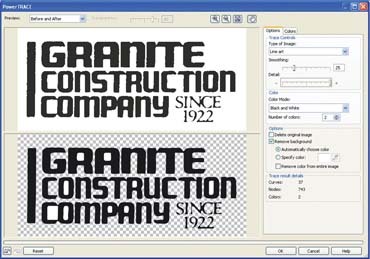
The scan-and-trace function of the old CorelTrace has been updated and integrated into X3. You won't have to scan, trace, save and open CorelDRAW, and then edit. Everything can be done from the same program. The user interface has also been enhanced with a nice "before" and "after" view to evaluate the trace. If you don't like the results, just make adjustments and try again. When completed, you can even have the trace objects overlay the original bitmap for fine-tuning with the node and curve-editing tools.
We took a business card and traced it for a vinyl sign (Fig. 4). In this case, it gave us better results by converting the image into black and white as opposed to grayscale.
Corel Photo-Paint enhancements
Photo-Paint is the image-editing portion of CorelDRAW X3. If you edit a lot of photos, you probably use a more high-end application. If, however, you're new to digital imaging, you'll likely be surprised by the numerous tools Photo-Paint offers.
Many complex editing functions and a slew of special effects are included in the package. The Photo-Paint package's overall performance has significantly improved. You'll really notice a difference when applying special effects to an image.
Of the many new features, two will particularly interest digital printers, especially those who create designs from photographs.
Advertisement
First, we'll highlight the new Image Adjustment Lab. Color-correction tools are built into most image-editing packages. These tools can be simple adjustment sliders that let you control brightness and contrast, as well as complicated curve systems.
If you're new to image editing, you've probably been frustrated by color correction. Whenever you change one setting, it seems to mess up another. Photos shot under incandescent lighting can present a significant challenge. How do you remove all the yellow from the photo without turning flesh tones green?
The Image Adjustment Lab tool can make all of the adjustments in one place. Tools can even change an image's color temperature, the only real way to correct incandescent lighting issues. The lab allows you to view just the photo, a "before" and "after," and even a split view, with one side showing the original and the other the adjusted view. You can save "snapshots" in the lab and recall them for comparison. This great tool really makes color correction much less painful.
Cutout Lab
Photo-Paint's other major enhancement is the Cutout Lab. What exactly is a cutout? You've probably seen ads that show a bottle of beer or a person, or some other item thats been cut out of a photograph and placed on a different background. Layering images is pretty easy now. Cutting the person out of the original photo is an entirely different matter.
You can cut out images using masks or tracing with paths. Believe us, either way is tedious and time consuming. The easy-to-use Cutout Lab feature really works. To use it, bring up the tool from the Image menu. Zoom in to the item you want to isolate. With the pen tool, roughly outline the object (Fig. 5). When the outline is complete, flood the area with the fill tool. Now you see the object without the rest of the image. Just use the Add and Remove tool to fix the ragged areas and accept the results. The image will be professionally extracted and ready to use in the final design.
Other notable features
We've really tried to hit Corel X3 highlights that would appeal to signmakers and digital printers. We've only covered a few of the many enhancements, including some for the text-layout functions.
New Dockers (menus that appear to the right of the drawing area) simplify character and paragraph formatting. Also, a new, interactive, fit-text-to-a-path tool makes this very frustrating function easy and fast. Other layout improvements include better font matching and enhanced text handling, which helps manage lists, bullets, alignment, columns and tabs.
Compatibility is a Corel Suite hallmark. Creating and working with myriad file formats, including PDFs, Microsoft Office files and virtually all graphics and bitmap formats, have been improved. The entire color-management system has also been improved so even users with minimal, color-system knowledge can produce accurate results. The updated Pantone® color palette even includes a transparent white.
Also, Pixmantec RAWShooter essentials were added. As camera work transitions from film to digital, professional photographers are now adopting camera RAW as the format of choice. A RAW image is essentially a digital negative. Various enhancements, including exposure and sharpening, can be performed after the fact. RAW images are normally converted to a traditional image format, such as TIFF or PSD, when used in a design.
RAWShooter handles many of these functions in a streamlined, workflow method. If you use a digital SLR in your work, this is a great addition.
Whenever you think Corel can't add anything to its graphics suite, it delivers more features than we can write about in a single article.
Key Information
Corel Corp.
1600 Carling Ave.
Ottawa, Ontario, Canada
K1Z 8R7
(613) 728-0826
www.corel.com
Company Background: Corel Corp. has been providing graphics-software solutions for office and sign professionals since it was founded in 1985. Its best-known product lines are CorelDRAW Graphics Suite and WordPerfect Office.
Contact: Corel customer service (800) 772-6735
Minimum System Requirements: Windows XP/2000, 256MB of RAM, 200MB of free disk space, 1,024 3 768 screen resolution
At a Glance: CorelDraw X3 graphics software features new bitmap-to-vector tracing in Corel PowerTRACE, new photo-editing features in PHOTO-PAINT, new suite-wide learning tools, and enhancements in illustration and page layout.













 News6 days ago
 Russell Toynes2 weeks ago
 Benchmarks1 week ago
 Monument Signs2 weeks ago
 Buzz Session6 days ago
 Photo Gallery2 weeks ago
 Jameson Parker5 days ago
 Tip Sheet7 days ago